

TikTok has evolved from a short-form video app into a livestreaming powerhouse. For creators, going live is the fastest way to build a community, earn revenue through gifts, and boost your account's visibility.
Whether you want to chat with your followers from your couch or broadcast high-end gameplay from your PC, getting started is easier than you think. In this guide, we’ll walk you through the exact steps to go live on TikTok in 2025-2026.
1. Can You Go Live? Age and Follower Basics
Before you start streaming, ensure your account meets TikTok's eligibility criteria. If the "Go Live" button is missing, it is likely due to one of these reasons:
-
Age Requirement: You must be at least 18 years old. Users aged 16+ can stream but cannot monetize.
-
Follower Count: The standard requirement is 1,000 followers.
-
Region Availability: TikTok Live is not available in all countries.
-
Account Status: You must have no active Community Guidelines violations.
Full gift and monetization eligibility rules: TikTok LIVE Gifts Requirements 2026
2. How to Go Live on Mobile (iOS & Android)
Streaming from your phone is the most authentic and popular way to use TikTok. It requires no extra gear-just you and your smartphone. You don't need a computer to stream games like PUBG Mobile, Free Fire, or Roblox. TikTok has a built-in feature for this:
Step-by-Step Guide:
-
Open the App: Launch TikTok and tap the Create icon (+) at the bottom center of the screen.
-
Swipe to LIVE: Swipe right on the bottom navigation bar (past "Camera", "Story", "Templates") until you land on LIVE.
-
Set Your Title: Tap "Add a title" at the top. Use a catchy hook like "Chatting with followers" or "Ranked Gameplay".
-
Choose a Cover Image: Pick a photo or take a new one that represents your stream.
-
Adjust Settings: On the right side, you can toggle Comments, add Effects, or use Enhance filters to smooth your video.
-
Go Live: Tap the big red Go LIVE button. You will see a 3-second countdown, and then you are on air!
3. How to Go Live on PC (TikTok LIVE Studio & OBS)
Streaming from a desktop allows for higher quality, overlays, and professional audio. Currently, there are two main ways to stream from a computer.
There are two main ways to stream from a PC:
Option A: TikTok LIVE Studio (The Official Way)
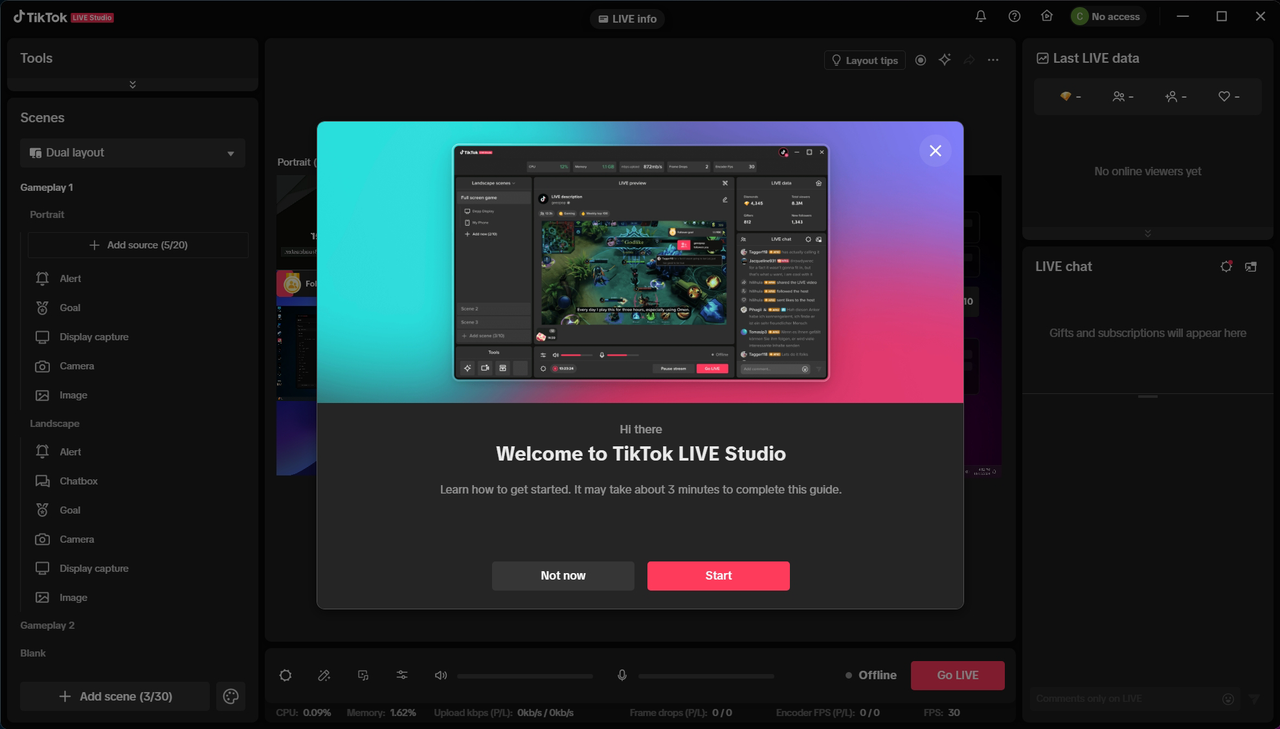
TikTok Live Studio is the platform's proprietary streaming software, designed to replace third-party tools. It offers better algorithm visibility compared to OBS.
-
Log in to your account on the desktop version of TikTok.
-
Click the "Go Live" button and select "Download TikTok Live Studio".
-
Install and log in. The software will automatically detect your camera and microphone.
-
Set up your Scenes: You can add "Game Capture," "Window Capture," or "Video Source."
-
Adjust your Video Settings: For the best quality, set the resolution to 1080p (9:16 vertical) and bitrate to 4000-6000 Kbps.
Option B: OBS Studio (For Advanced Users)
Professional streamers often prefer OBS Studio or Streamlabs Desktop for advanced customization. However, obtaining a Stream Key can be tricky in 2025.
-
Get the Key: Click "Go Live" on the desktop browser -> Select "Cast on PC/Mac". You will see the Server URL and Stream Key.
-
Stream Key Missing? If you do not see the "Cast on PC/Mac" option, TikTok has restricted RTMP access for your account. The only official way to unlock this is by joining a Live Agency that can request RTMP access for you.
-
-
Configure OBS: Open OBS -> Settings -> Stream -> Service: "Custom". Paste your Server URL and Key.
-
Start Streaming: Hit "Start Streaming" in OBS, then confirm on the TikTok app.
Best OBS Settings for TikTok Live
To ensure a smooth vertical stream without lag, use these settings in OBS:
-
Base Canvas Resolution: 1080x1920 (9:16 Aspect Ratio).
-
Output Scaled Resolution: 1080x1920.
-
FPS: 60 FPS (essential for gaming).
-
Bitrate: 4500 Kbps - 6000 Kbps (depending on your upload speed).
-
Keyframe Interval: 2 seconds.
Check our guide article for more details: How to Stream Games on TikTok: OBS vs. TikTok LIVE Studio
4. Tips for a Successful First Stream
Going live is just the beginning. To grow, you need to treat your stream like a professional broadcast.
-
Engage with Chat: Engagement Rate (ER) is a critical metric for growth. Acknowledging comments and thanking viewers for gifts keeps them watching longer.
-
Check Your Connection: A stable internet connection is vital. WiFi is good, but an Ethernet cable (for PC) is better.
-
Analyze Your Performance: After your stream ends, look at your numbers. How many people watched? What was your peak viewership?
Ready to grow?Understanding your data is the key to success. Keep track of your stream analytics and compare your growth with other creators using TikTok Stats.


